> ## Documentation Index
> Fetch the complete documentation index at: https://developer.uphold.com/llms.txt
> Use this file to discover all available pages before exploring further.
# Apple Pay deposit via the Payment Widget
> Fund a user's account with Apple Pay using the Uphold Payment Widget.
export const apmLabel_1 = "Apple Pay"
export const apmLabel_0 = "Apple Pay"
export const direction_0 = "deposit"
The Payment Widget handles Apple Pay selection for deposits via the **Select for Deposit flow**, where users can select Apple Pay as the payment method. After the user confirms an Apple Pay deposit quote, the Payment Widget completes the Apple Pay authorization and creates the transaction via the **Authorize flow**.
## Prerequisites
* The user has [completed onboarding](/developer-guides/user-onboarding/overview).
* The `apple-pay` capability is enabled.
* The Payment Widget is set up in your frontend and Apple Pay's additional setup requirements are met. See [Installation and setup](/widgets/payment/installation-and-setup).
## Walkthrough
```mermaid theme={null}
sequenceDiagram
autonumber
participant Usr as User
participant U as Your App
participant B as Your Backend
participant P as Payment Widget
participant A as Uphold
Usr->>U: Start deposit
U->>B: Create widget session
B->>A: Create widget session (select-for-deposit)
A-->>B: { session }
B-->>U: { session }
U->>P: Initialize widget
Usr->>P: Select Apple Pay
P-->>U: complete { via, selection }
U->>B: List accounts
B->>A: GET /core/accounts
A-->>B: { accounts }
B-->>U: { accounts }
Usr->>U: Choose destination account and amount
U->>B: Create quote
B->>A: Create quote (APM → account)
A-->>B: { quote }
B-->>U: { quote }
U->>B: Create authorize session
B->>A: Create widget session (authorize)
A-->>B: { session }
B-->>U: { session }
U->>P: Initialize widget
Usr->>P: Authorize with Apple Pay sheet
P->>A: Create transaction
A-->>P: { transaction }
P-->>U: complete { transaction, trigger }
B-->>Usr: Notify the user
```
***
## Select deposit method
The Payment Widget's **Select for Deposit flow** presents the available payment methods, letting the user select Apple Pay when it's available. It performs **selection only**: it does not create the quote or the transaction.
### Create a widget session
Call [Create widget session](/rest-apis/widgets-api/payment/create-session) to start the `select-for-deposit` flow.
```http theme={null}
POST /widgets/payment/sessions
{
"flow": "select-for-deposit"
}
```
```json theme={null}
{
"session": {
"flow": "select-for-deposit",
"url": "https://payment.enterprise.uphold.com/",
"token": "GEbRxBN...edjnXbL"
}
}
```
Pass `response.session` to your frontend to initialize the widget.
### Set up the widget
```javascript Web SDK [expandable] theme={null}
import { PaymentWidget } from '@uphold/enterprise-payment-widget-web-sdk';
const initializeDepositWidget = async (session) => {
const widget = new PaymentWidget<'select-for-deposit'>(session, { debug: true });
widget.on('complete', (event) => {
console.log('Complete', JSON.stringify(event.detail.value));
});
widget.on('cancel', () => {
console.log('Cancelled');
widget.unmount();
});
widget.on('error', (event) => {
console.error('Error', event.detail.error);
widget.unmount();
});
widget.mountIframe(document.getElementById('payment-container'));
};
```
```html JavaScript [expandable] theme={null}
```
Both examples above are for web applications — either creating the iframe yourself or letting the SDK do it. For native apps using a WebView, see [Native apps with the SDK](/widgets/payment/installation-and-setup#native-apps-with-the-sdk) for the SDK's native-bundling pattern, or [Setup with JavaScript](/widgets/payment/installation-and-setup#setup-with-javascript) for the no-SDK approach that loads the session `url` directly as the WebView's top-level page.
### Handle the complete event
The `complete` event fires after the user selects Apple Pay.
```javascript Web SDK theme={null}
widget.on('complete', (event) => {
const { via, selection } = event.detail.value;
// If via is 'apm', you can check the selected method through the property `selection.method`, which will be 'apple-pay' in this case.
if (via === 'apm' && selection.method === 'apple-pay') {
handleApplePaySelected();
}
widget.unmount();
});
```
```javascript JavaScript theme={null}
// Inside the onMessage switch from Set up the widget
case 'complete': {
const { via, selection } = event.data.value;
// If via is 'apm', you can check the selected method through the property `selection.method`, which will be 'apple-pay' in this case.
if (via === 'apm' && selection.method === 'apple-pay') {
handleApplePaySelected();
}
teardown();
break;
}
```
Once you have the selection, prompt the user to choose a destination account, then create a quote.
### Handle cancellations
```javascript Web SDK theme={null}
widget.on('cancel', () => {
widget.unmount();
// Return the user to the previous screen
});
```
```javascript JavaScript theme={null}
// Inside the onMessage switch from Set up the widget
case 'cancel':
teardown();
// Return the user to the previous screen
break;
```
### Handle errors
The `error` event fires for critical unrecoverable errors.
```javascript Web SDK theme={null}
widget.on('error', (event) => {
console.error('Widget error:', event.detail.error);
widget.unmount();
// Show a user-friendly error message
});
```
```javascript JavaScript theme={null}
// Inside the onMessage switch from Set up the widget
case 'error':
console.error('Widget error:', event.data.error);
teardown();
// Show a user-friendly error message
break;
```
The Payment Widget handles most errors internally. For unrecoverable errors, the widget fires an `error` event. It is the host application's responsibility to handle these events, present an error message to the user, and unmount the widget.
***
## Select destination account
{apmLabel_1} deposits can target any account. If the selected account is not in the {apmLabel_1} account's currency, the amount will be converted at settlement using Uphold's prevailing rate. Make sure the destination asset has the necessary [features enabled](/rest-apis/core-api/assets/introduction#features-and-deposits-/-withdrawals).
### Find an existing account
Call [List accounts](/rest-apis/core-api/accounts/list-accounts) to retrieve the user's accounts and let them pick the one they want to fund.
```http theme={null}
GET /core/accounts
```
```json theme={null}
{
"accounts": [
{
"id": "a00507fe-628c-4f27-ae81-e1c40b2a8fb8",
"ownerId": "e4ce04dc-67b7-4e9f-af91-482cb6f9fc4a",
"label": "My USD account",
"asset": "USD",
"balance": {
"total": "500.00",
"available": "500.00"
}
}
]
}
```
### Create a new account
If the user has no accounts, create one with [Create account](/rest-apis/core-api/accounts/create-account) before proceeding.
```http theme={null}
POST /core/accounts
{
"label": "My USD account",
"asset": "USD"
}
```
```json theme={null}
{
"account": {
"id": "a00507fe-628c-4f27-ae81-e1c40b2a8fb8",
"ownerId": "e4ce04dc-67b7-4e9f-af91-482cb6f9fc4a",
"label": "My USD account",
"asset": "USD",
"balance": {
"total": "0",
"available": "0"
}
}
}
```
Once the user selects Apple Pay and their account, proceed to [Create a quote](#create-a-quote).
***
## Create a quote
Call [Create quote](/rest-apis/core-api/transactions/create-quote) with Apple Pay as the origin and the user's account as the destination.
Specify Apple Pay as the origin with `type: "apm"` with `method: "apple-pay"`.
```http theme={null}
POST /core/transactions/quote
{
"origin": {
"type": "apm",
"method": "apple-pay"
},
"destination": {
"type": "account",
"id": "71e9fd4b-dfcd-4643-a5b0-51fd33e50a8d"
},
"denomination": {
"asset": "USD",
"amount": "50",
"target": "origin"
}
}
```
A successful response includes the quote details and a `requirements` array. For Apple Pay, it contains `authorize:apple-pay`, which indicates that the user must authorize Apple Pay before the transaction can be created.
```json [expandable] theme={null}
{
"quote": {
"id": "c3e8d2f7-9a41-4b75-b8e3-1d6f4a9c2e57",
"origin": {
"amount": "50.00",
"asset": "USD",
"node": {
"type": "apm",
"method": "apple-pay"
},
"rate": "1"
},
"destination": {
"amount": "50.00",
"asset": "USD",
"node": {
"type": "account",
"id": "71e9fd4b-dfcd-4643-a5b0-51fd33e50a8d",
"ownerId": "48e40cb2-6c34-44ce-b2f1-6adac459bb37"
},
"rate": "1"
},
"denomination": {
"asset": "USD",
"amount": "50.00",
"target": "origin",
"rate": "1"
},
"fees": [],
"expiresAt": "2025-06-18T01:55:39Z",
"requirements": [
"authorize:apple-pay"
]
}
}
```
***
## Authorize and create the transaction
After the user confirms the Apple Pay quote, hand off to the Payment Widget **Authorize flow**. It presents the Apple Pay sheet, creates the transaction, and polls until a terminal status is reached. Apple Pay authorizes **per transaction** on the user's device — there is no stored authorization to reuse, so the user confirms with Face ID, Touch ID, or their passcode every time. By default, the widget renders a full walkthrough around the authorization; in **headless mode**, it renders only the Apple Pay button so you can embed it directly into your own UI — see [Headless mode](#headless-mode) below.
### Create an authorize session
Call [Create widget session](/rest-apis/widgets-api/payment/create-session) with `flow: "authorize"`, the `quoteId` and with the `requirements` array containing `authorize:apple-pay`. For web apps, also include the top-page `domain`.
The top-page domain is the domain shown in the browser's URL bar — the very top-level page hosting the widget iframe. For web apps, it must match the domain you registered with Apple Pay for your merchant ID.
```http theme={null}
POST /widgets/payment/sessions
{
"flow": "authorize",
"data": {
"quoteId": "",
"requirements": [
"authorize:apple-pay"
],
"domain": "" // For web apps only, required for Apple Pay
}
}
```
```json theme={null}
{
"session": {
"flow": "authorize",
"url": "https://payment.enterprise.uphold.com/",
"token": "GEbRxBN...edjnXbL",
"data": {
"quoteId": "",
"requirements": [
"authorize:apple-pay"
],
"domain": "" // For web apps only, required for Apple Pay
}
}
}
```
### Set up the widget
Initialize the widget with the session. The widget presents the Apple Pay sheet, collects device data, creates the transaction, and polls until a terminal status is reached.
```javascript Web SDK [expandable] theme={null}
import { PaymentWidget } from '@uphold/enterprise-payment-widget-web-sdk';
const initializeAuthorizeWidget = async (session) => {
const widget = new PaymentWidget<'authorize'>(session, { debug: true });
widget.on('complete', (event) => {
const { transaction, trigger } = event.detail.value;
console.log('Complete', transaction.status, trigger.reason);
widget.unmount();
});
widget.on('cancel', () => {
console.log('Cancelled');
widget.unmount();
});
widget.on('error', (event) => {
console.error('Error', event.detail.error);
widget.unmount();
});
widget.mountIframe(document.getElementById('payment-container'));
};
```
```javascript JavaScript [expandable] theme={null}
// session is `response.session` from your backend
async function initializeAuthorizeWidget(session) {
const container = document.getElementById('payment-container');
const sessionOrigin = new URL(session.url).origin;
const iframe = document.createElement('iframe');
iframe.src = session.url;
iframe.setAttribute('allow', "clipboard-write 'src'; clipboard-read 'src'; payment 'src';");
iframe.style.width = '100%';
iframe.style.height = '100%';
iframe.style.border = 'none';
function teardown() {
window.removeEventListener('message', onMessage);
iframe.remove();
}
function onMessage(event) {
if (event.origin !== sessionOrigin) return;
switch (event.data?.type) {
case 'load':
iframe.contentWindow.postMessage({ ...session, options: {}, type: 'init' }, sessionOrigin);
break;
case 'complete': {
const { transaction, trigger } = event.data.value;
console.log('Complete', transaction.status, trigger.reason);
teardown();
break;
}
case 'cancel':
console.log('Cancelled');
teardown();
break;
case 'error':
console.error('Error', event.data.error);
teardown();
break;
}
}
window.addEventListener('message', onMessage);
container.appendChild(iframe);
}
```
Both examples above are for web applications — either creating the iframe yourself or letting the SDK do it. For native apps using a WebView, see [Native apps with the SDK](/widgets/payment/installation-and-setup#native-apps-with-the-sdk) for the SDK's native-bundling pattern, or [Setup with JavaScript](/widgets/payment/installation-and-setup#setup-with-javascript) for the no-SDK approach that loads the session `url` directly as the WebView's top-level page.
### Headless mode
By default, the widget renders a full authorization experience — a short walkthrough, the Apple Pay button, and a processing screen while the transaction is confirmed. In **headless mode**, it renders only the Apple Pay button, with no surrounding UI, so you can embed it directly into your own layout. Your app then owns the surrounding context and the post-authorization experience — progress and success feedback, and a way to cancel.
```javascript Web SDK theme={null}
const widget = new PaymentWidget<'authorize'>(session, {
debug: true,
authorize: {
mode: 'headless'
}
});
```
```javascript JavaScript theme={null}
iframe.contentWindow.postMessage({ ...session, options: { authorize: { mode: 'headless' } }, type: 'init' }, sessionOrigin);
```
See [`AuthorizeFlowOptions`](/widgets/payment/sdk-reference#authorizeflowoptions) in the SDK reference for the full type definition.
### Handle the complete event
The `complete` event does not guarantee success. Always check `transaction.status` and `trigger.reason`.
```javascript Web SDK theme={null}
widget.on('complete', (event) => {
const { transaction, trigger } = event.detail.value;
if (trigger.reason === 'transaction-status-changed') {
if (transaction.status === 'completed') {
// Show success — the transfer settled
} else if (transaction.status === 'failed') {
// Map transaction.statusDetails.reason to a user-facing message
}
} else if (trigger.reason === 'max-retries-reached') {
// Widget stopped polling — continue monitoring via webhooks or polling
}
widget.unmount();
});
```
```javascript JavaScript theme={null}
// Inside the onMessage switch from Set up the widget
case 'complete': {
const { transaction, trigger } = event.data.value;
if (trigger.reason === 'transaction-status-changed') {
if (transaction.status === 'completed') {
// Show success — the transfer settled
} else if (transaction.status === 'failed') {
// Map transaction.statusDetails.reason to a user-facing message
}
} else if (trigger.reason === 'max-retries-reached') {
// Widget stopped polling — continue monitoring via webhooks or polling
}
teardown();
break;
}
```
Failure reasons in `transaction.statusDetails.reason`:
| Reason | Description |
| ----------------------------------- | -------------------------------------------------- |
| `apm-authorization-failed` | The Apple Pay authorization could not be completed |
| `card-declined-by-bank` | The card was declined by the issuing bank |
| `card-expired` | The card has expired |
| `card-permanently-declined-by-bank` | The card was permanently declined |
| `card-unauthorized` | The card authorization was not completed |
| `card-unsupported` | The card is not supported for this operation |
| `insufficient-funds` | The origin account has insufficient funds |
| `provider-maximum-limit-exceeded` | The transaction exceeds provider limits |
| `velocity` | The transaction was blocked by velocity rules |
| `unspecified-error` | The transaction failed for an unspecified reason |
### Handle cancellations
The `cancel` event fires when the user dismisses the Apple Pay sheet or navigates back without completing authorization.
```javascript Web SDK theme={null}
widget.on('cancel', () => {
widget.unmount();
// Return the user to the previous screen
});
```
```javascript JavaScript theme={null}
// Inside the onMessage switch from Set up the widget
case 'cancel':
teardown();
// Return the user to the previous screen
break;
```
### Handle errors
The `error` event fires for critical unrecoverable errors — except `authorize_transaction_failed`, which is retryable. It is your decision whether to unmount the widget and show a user-facing error message, or leave it mounted so the user can try again.
```javascript Web SDK theme={null}
widget.on('error', (event) => {
const { code, details } = event.detail.error;
console.error('Widget error:', code, details);
if (code === 'authorize_transaction_failed') {
// Retryable — keep the widget mounted so the user can try again
return;
}
widget.unmount();
// Show a user-friendly error message
});
```
```javascript JavaScript theme={null}
// Inside the onMessage switch from Set up the widget
case 'error': {
const { code, details } = event.data.error;
console.error('Widget error:', code, details);
if (code !== 'authorize_transaction_failed') {
teardown();
// Show a user-friendly error message
}
// authorize_transaction_failed is retryable — keep the iframe/WebView mounted so the user can try again
break;
}
```
Error codes in `event.detail.error.code`:
| Code | Description |
| ------------------------------ | ---------------------------------------------------------------------------- |
| `authorize_transaction_failed` | The Apple Pay authorization failed — retryable, unlike the other codes below |
| `entity_not_found` | The quote was not found or has expired |
| `insufficient_balance` | The origin has insufficient balance |
| `operation_not_allowed` | The operation is not permitted |
| `user_capability_failure` | The user lacks the required capability for this operation |
The Payment Widget handles most errors internally. For unrecoverable errors, the widget fires an `error` event. It is the host application's responsibility to handle these events, present an error message to the user, and unmount the widget.
***
## Monitor for settlement
{apmLabel_0} {direction_0} transactions remain in `processing` while the payment settles. Monitor until the transaction reaches a terminal state.
* **Webhook events** (recommended):
* [core.transaction.created](/rest-apis/core-api/transactions/webhooks/transaction-created) — `status: processing` → transaction created, pending settlement
* [core.transaction.status-changed](/rest-apis/core-api/transactions/webhooks/transaction-status-changed) — `status: completed` → funds settled; `status: failed` → irrecoverable error
* **Polling** (fallback): [Get transaction](/rest-apis/core-api/transactions/get-transaction)
***
## Sample transaction
In a successful Apple Pay deposit, the origin is represented as an `apm` node with the method as `apple-pay`. The destination is the user's `account`.
```json [expandable] theme={null}
{
"transaction": {
"id": "9b2f4a17-5e3c-4d77-a8e1-9bcdef2c0a42",
"origin": {
"asset": "USD",
"amount": "50.00",
"node": {
"type": "apm",
"method": "apple-pay"
}
},
"destination": {
"asset": "USD",
"amount": "50.00",
"node": {
"type": "account",
"id": "71e9fd4b-dfcd-4643-a5b0-51fd33e50a8d",
"ownerId": "48e40cb2-6c34-44ce-b2f1-6adac459bb37"
}
},
"status": "completed",
"quotedAt": "2025-06-18T00:55:39Z",
"createdAt": "2025-06-18T00:56:39Z",
"updatedAt": "2025-06-18T00:57:08Z",
"denomination": {
"asset": "USD",
"amount": "50.00",
"target": "origin"
}
}
}
```
***
## Notify the user
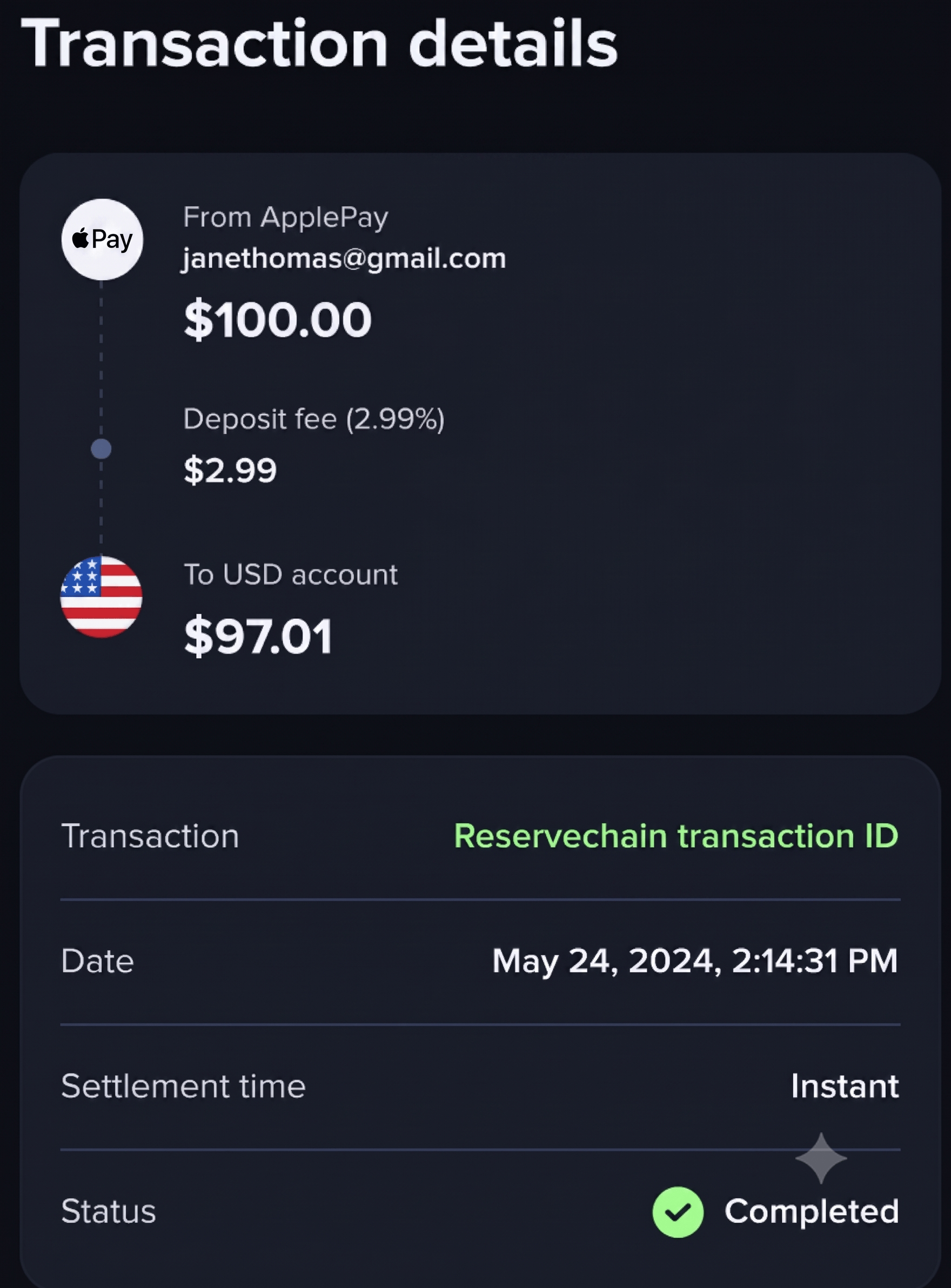
After the transaction completes, display the transaction details to the user so they can confirm the deposit succeeded. Here's an example:
***
## Troubleshooting
Having issues rendering Apple Pay? See [Troubleshooting](/widgets/payment/installation-and-setup#troubleshooting) in the Payment Widget installation guide.
***
You now support Apple Pay deposits via the Payment Widget.