> ## Documentation Index
> Fetch the complete documentation index at: https://developer.uphold.com/llms.txt
> Use this file to discover all available pages before exploring further.
# PayPal deposit via the REST API
> Fund a user's account from PayPal through the Uphold REST API.
export const apmLabel_1 = "PayPal"
export const apmLabel_0 = "PayPal"
export const direction_0 = "deposit"
This guide covers funding a user's account from PayPal using the REST API together with the Payment Widget. It handles both cases: **authorizing a new account** for the first time, and **depositing from an account the user already authorized**. Both run through the widget's **Authorize flow** — your backend only creates the quote and the widget session.
Authorization always runs through the Payment Widget — for both new and already-authorized accounts. The widget collects Braintree **device data** and submits it with the transaction, which PayPal uses for fraud and risk analysis.
## Prerequisites
* The user has [completed onboarding](/developer-guides/user-onboarding/overview), has the `paypal` capability enabled, and has a **verified phone number**.
* Your app has integrated the [Payment Widget SDK](/widgets/payment/introduction).
* Your API client has the required scopes:
* `core.transactions:create` — to create quotes and transactions
* `widgets.payment.sessions:create` — to create widget sessions
## Walkthrough
The diagram shows a first-time authorization. For an already-authorized account, skip the sign-in — the widget only collects device data and reuses the stored authorization.
```mermaid theme={null}
sequenceDiagram
autonumber
participant Usr as User
participant U as Your App
participant B as Your Backend
participant P as Payment Widget
participant A as Uphold
Usr->>U: Start deposit
U->>B: Get rails and capabilities
B->>A: GET /core/rails?type=apm
A-->>B: { rails }
B->>A: GET /core/capabilities
A-->>B: { capabilities }
B-->>U: { rails, capabilities }
U->>B: Get accounts
B->>A: GET /core/accounts
A-->>B: { accounts }
B-->>U: { accounts }
Usr->>U: Select PayPal and destination account
Usr->>U: Choose amount
U->>B: Create quote
B->>A: Create quote (APM → account)
A-->>B: { quote }
B-->>U: { quote }
U->>B: Create authorize session
B->>A: Create widget session (authorize)
A-->>B: { session }
B-->>U: { session }
U->>P: Initialize widget
Usr->>P: Sign in & authorize (first time only)
P->>A: Create transaction
A-->>P: { transaction }
P-->>U: complete { transaction, trigger }
B-->>Usr: Notify the user
```
***
## Check available rails
Call [List rails](/rest-apis/core-api/assets/list-rails) to verify PayPal deposit is available.
```http theme={null}
GET /core/rails?type=apm
```
```json theme={null}
{
"rails": [
{
"type": "apm",
"network": "paypal",
"method": "paypal",
"asset": "USD",
"decimals": 2,
"features": ["deposit", "withdraw"]
}
]
}
```
## Check capabilities
Call [List capabilities](/rest-apis/core-api/capabilities/list-user-capabilities) to confirm the user has the `paypal` capability enabled with no unmet requirements.
```http theme={null}
GET /core/capabilities
```
```json theme={null}
{
"capabilities": [
{
"code": "paypal",
"name": "PayPal",
"enabled": true,
"requirements": [],
"restrictions": []
}
]
}
```
## Select destination account
{apmLabel_1} deposits can target any account. If the selected account is not in the {apmLabel_1} account's currency, the amount will be converted at settlement using Uphold's prevailing rate. Make sure the destination asset has the necessary [features enabled](/rest-apis/core-api/assets/introduction#features-and-deposits-/-withdrawals).
### Find an existing account
Call [List accounts](/rest-apis/core-api/accounts/list-accounts) to retrieve the user's accounts and let them pick the one they want to fund.
```http theme={null}
GET /core/accounts
```
```json theme={null}
{
"accounts": [
{
"id": "a00507fe-628c-4f27-ae81-e1c40b2a8fb8",
"ownerId": "e4ce04dc-67b7-4e9f-af91-482cb6f9fc4a",
"label": "My USD account",
"asset": "USD",
"balance": {
"total": "500.00",
"available": "500.00"
}
}
]
}
```
### Create a new account
If the user has no accounts, create one with [Create account](/rest-apis/core-api/accounts/create-account) before proceeding.
```http theme={null}
POST /core/accounts
{
"label": "My USD account",
"asset": "USD"
}
```
```json theme={null}
{
"account": {
"id": "a00507fe-628c-4f27-ae81-e1c40b2a8fb8",
"ownerId": "e4ce04dc-67b7-4e9f-af91-482cb6f9fc4a",
"label": "My USD account",
"asset": "USD",
"balance": {
"total": "0",
"available": "0"
}
}
}
```
***
## Create a quote
Call [Create quote](/rest-apis/core-api/transactions/create-quote) with PayPal as the origin and the user's account as the destination.
There are two ways to specify the PayPal origin:
* **`apm` shortcut** — use `type: "apm"` with `method: "paypal"`. This is always accepted, whether or not the user already has a linked PayPal account.
* **`external-account` reference** — if the user already has a linked PayPal account, you can reference it directly with `type: "external-account"` and its `id` (from [List external accounts](/rest-apis/core-api/external-accounts/list-external-accounts)):
```json theme={null}
{
"origin": {
"type": "external-account",
"id": "9d3cce5f-a448-f985-b64f-a62930b18eea"
}
}
```
The example below uses the `apm` shortcut.
```http theme={null}
POST /core/transactions/quote
{
"origin": {
"type": "apm",
"method": "paypal"
},
"destination": {
"type": "account",
"id": "71e9fd4b-dfcd-4643-a5b0-51fd33e50a8d"
},
"denomination": {
"asset": "USD",
"amount": "50",
"target": "origin"
}
}
```
A successful response includes the quote details and a `requirements` array. If it contains `authorize:paypal`, the user must authorize PayPal before the transaction can be created.
```json [expandable] theme={null}
{
"quote": {
"id": "c3e8d2f7-9a41-4b75-b8e3-1d6f4a9c2e57",
"origin": {
"amount": "50.00",
"asset": "USD",
"node": {
"type": "apm",
"method": "paypal"
},
"rate": "1"
},
"destination": {
"amount": "50.00",
"asset": "USD",
"node": {
"type": "account",
"id": "71e9fd4b-dfcd-4643-a5b0-51fd33e50a8d",
"ownerId": "48e40cb2-6c34-44ce-b2f1-6adac459bb37"
},
"rate": "1"
},
"denomination": {
"asset": "USD",
"amount": "50.00",
"target": "origin",
"rate": "1"
},
"fees": [],
"expiresAt": "2025-06-18T01:55:39Z",
"requirements": [
"authorize:paypal"
]
}
}
```
***
## Authorize and create the transaction
After the user confirms the PayPal deposit quote, hand off to the Payment Widget **Authorize flow**. It creates the transaction, runs the PayPal authorization, and polls until a terminal status is reached — so the same flow works for both new and already-authorized accounts.
### Create an authorize session
Call [Create widget session](/rest-apis/widgets-api/payment/create-session) with `flow: "authorize"`, the `quoteId` and with the `requirements` array containing `authorize:paypal`.
```http theme={null}
POST /widgets/payment/sessions
{
"flow": "authorize",
"data": {
"quoteId": "",
"requirements": [
"authorize:paypal"
]
}
}
```
```json theme={null}
{
"session": {
"flow": "authorize",
"url": "https://payment.enterprise.uphold.com/",
"token": "GEbRxBN...edjnXbL",
"data": {
"quoteId": "",
"requirements": [
"authorize:paypal"
]
}
}
}
```
### Set up the widget
Initialize the widget with the session. The widget interacts with PayPal, creates the transaction, and polls until a terminal status is reached. For a **new account** the user signs in to PayPal to authorize; for an **already-authorized account** they do not sign in again — the widget only collects device data and reuses the stored authorization.
```javascript theme={null}
import { PaymentWidget } from '@uphold/enterprise-payment-widget-web-sdk';
const initializeAuthorizeWidget = async (session) => {
const widget = new PaymentWidget<'authorize'>(session, { debug: true });
widget.on('complete', (event) => {
const { transaction, trigger } = event.detail.value;
console.log('Complete', transaction.status, trigger.reason);
widget.unmount();
});
widget.on('cancel', () => {
console.log('Cancelled');
widget.unmount();
});
widget.on('error', (event) => {
console.error('Error', event.detail.error);
widget.unmount();
});
widget.mountIframe(document.getElementById('payment-container'));
};
```
For native apps using a WebView, you'll need a bridge for events as outlined in [Installation & setup](/widgets/payment/installation-and-setup#native-application-integration).
### Handle the complete event
The `complete` event does not guarantee success. Always check `transaction.status` and `trigger.reason`.
```javascript theme={null}
widget.on('complete', (event) => {
const { transaction, trigger } = event.detail.value;
if (trigger.reason === 'transaction-status-changed') {
if (transaction.status === 'completed') {
// Show success — the account is now authorized and the transfer settled
} else if (transaction.status === 'failed') {
// Map transaction.statusDetails.reason to a user-facing message
}
} else if (trigger.reason === 'max-retries-reached') {
// Widget stopped polling — continue monitoring via webhooks or polling
}
widget.unmount();
});
```
Failure reasons in `transaction.statusDetails.reason`:
| Reason | Description |
| ---------------------------------- | ------------------------------------------------ |
| `apm-authorization-failed` | The PayPal authorization could not be completed |
| `apm-payment-method-declined` | PayPal declined the payment method |
| `apm-account-holder-data-mismatch` | The account holder details did not match |
| `apm-missing-account-holder-data` | Required account holder details were missing |
| `insufficient-funds` | The origin account has insufficient funds |
| `provider-maximum-limit-exceeded` | The transaction exceeds provider limits |
| `velocity` | The transaction was blocked by velocity rules |
| `unspecified-error` | The transaction failed for an unspecified reason |
### Handle cancellations
The `cancel` event fires when the user navigates back without completing authorization.
```javascript theme={null}
widget.on('cancel', () => {
widget.unmount();
// Return the user to the previous screen
});
```
### Handle errors
The `error` event fires for critical unrecoverable errors.
```javascript theme={null}
widget.on('error', (event) => {
const { code, details } = event.detail.error;
console.error('Widget error:', code, details);
widget.unmount();
// Show a user-friendly error message
});
```
Error codes in `event.detail.error.code`:
| Code | Description |
| ------------------------- | --------------------------------------------------------- |
| `entity_not_found` | The quote was not found or has expired |
| `insufficient_balance` | The origin has insufficient balance |
| `operation_not_allowed` | The operation is not permitted |
| `user_capability_failure` | The user lacks the required capability for this operation |
The Payment Widget handles most errors internally. For unrecoverable errors, the widget fires an `error` event. It is the host application's responsibility to handle these events, present an error message to the user, and unmount the widget.
***
## Monitor for settlement
{apmLabel_0} {direction_0} transactions remain in `processing` while the payment settles. Monitor until the transaction reaches a terminal state.
* **Webhook events** (recommended):
* [core.transaction.created](/rest-apis/core-api/transactions/webhooks/transaction-created) — `status: processing` → transaction created, pending settlement
* [core.transaction.status-changed](/rest-apis/core-api/transactions/webhooks/transaction-status-changed) — `status: completed` → funds settled; `status: failed` → irrecoverable error
* **Polling** (fallback): [Get transaction](/rest-apis/core-api/transactions/get-transaction)
***
## Sample transaction
In a successful PayPal deposit, the origin is the external account representing the user's PayPal account and the destination is the user's `account`.
```json [expandable] theme={null}
{
"transaction": {
"id": "9b2f4a17-5e3c-4d77-a8e1-9bcdef2c0a42",
"origin": {
"asset": "USD",
"amount": "50.00",
"node": {
"type": "external-account",
"id": "90acb64a-510d-f9d1-b542-d44e6c53eb5d",
"ownerId": "48e40cb2-6c34-44ce-b2f1-6adac459bb37"
}
},
"destination": {
"asset": "USD",
"amount": "50.00",
"node": {
"type": "account",
"id": "71e9fd4b-dfcd-4643-a5b0-51fd33e50a8d",
"ownerId": "48e40cb2-6c34-44ce-b2f1-6adac459bb37"
}
},
"status": "completed",
"quotedAt": "2025-06-18T00:55:39Z",
"createdAt": "2025-06-18T00:56:39Z",
"updatedAt": "2025-06-18T00:57:08Z",
"denomination": {
"asset": "USD",
"amount": "50.00",
"target": "origin"
}
}
}
```
***
## Notify the user
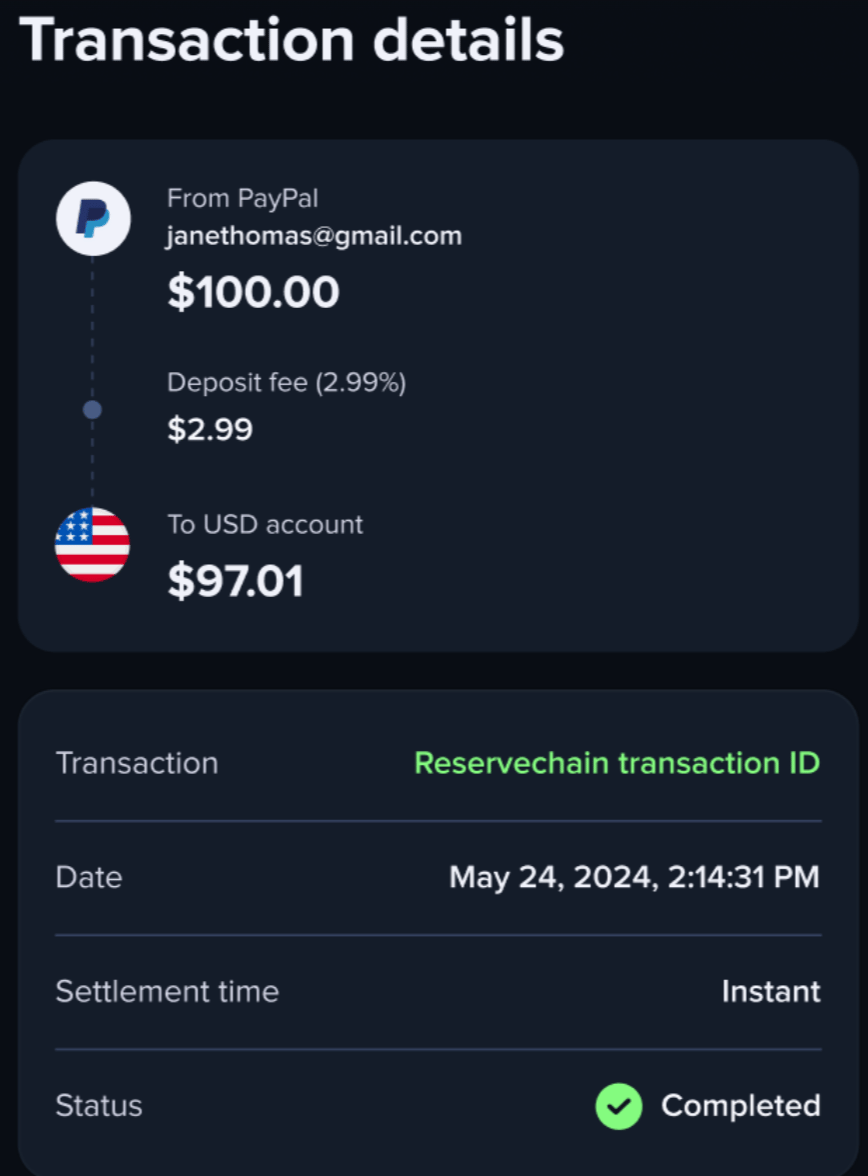
After the transaction completes, display the transaction details to the user so they can confirm the deposit succeeded. It must include the **PayPal logo and the PayPal account email used**. Here's an example:
You now support PayPal deposits via the REST API together with the Payment Widget.