

Prerequisites
- The user has completed onboarding.
- The
apple-paycapability is enabled. - The Payment Widget is set up in your frontend.
- Apple Pay’s additional setup requirements are met.
- The target browser or platform supports Apple Pay.
Walkthrough
The diagram shows an Apple Pay transaction authorization.Check available rails
Call List rails to verify Apple Pay deposit is available.Check capabilities
Call List capabilities to confirm the user has theapple-pay capability enabled with no unmet requirements.
Select destination account
Apple Pay deposits can target any account. If the selected account is not in the Apple Pay account’s currency, the amount will be converted at settlement using Uphold’s prevailing rate. Make sure the destination asset has the necessary features enabled.Find an existing account
Call List accounts to retrieve the user’s accounts and let them pick the one they want to fund.Create a new account
If the user has no accounts, create one with Create account before proceeding.Create a quote
Call Create quote with Apple Pay as the origin and the user’s account as the destination. Specify Apple Pay as the origin withtype: "apm" and method: "apple-pay".
requirements array. For Apple Pay, it contains authorize:apple-pay, which indicates that the user must authorize Apple Pay before the transaction can be created.
Present the order summary
Before creating the transaction, display an order summary of the quote — the amount, fees, and the origin and destination — so the user can review it. Here’s an example: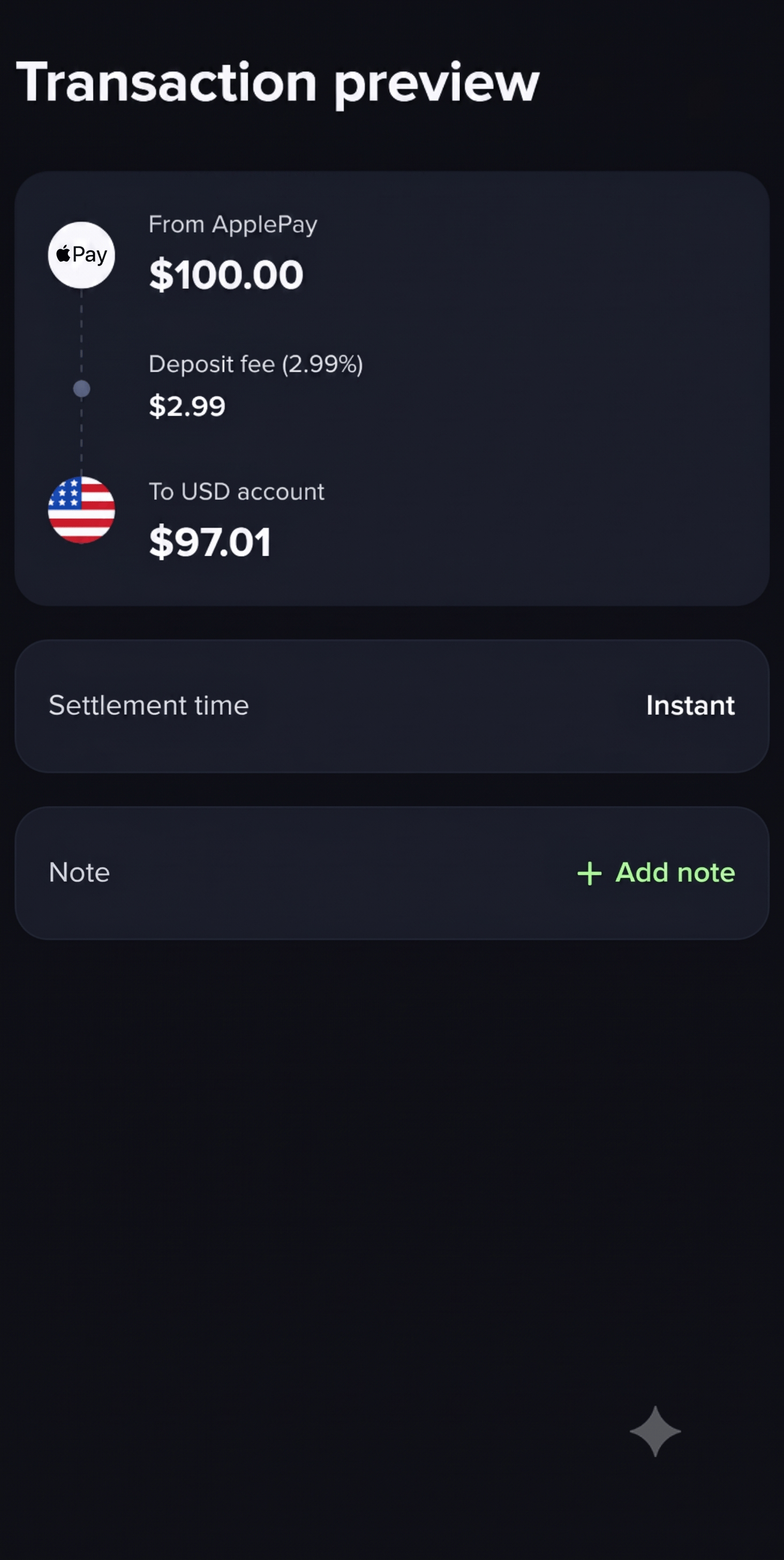
Authorize and create the transaction
After the user confirms the Apple Pay quote, hand off to the Payment Widget Authorize flow. It presents the Apple Pay sheet, creates the transaction, and polls until a terminal status is reached. Apple Pay authorizes per transaction on the user’s device — there is no stored authorization to reuse, so the user confirms with Face ID, Touch ID, or their passcode every time. By default, the widget renders a full walkthrough around the authorization; in headless mode, it renders only the Apple Pay button so you can embed it directly into your own UI — see Headless mode below.Create an authorize session
Call Create widget session to start theauthorize flow, passing the quoteId and adding authorize:apple-pay to the requirements array. For web apps, also include the top-page domain. To enable headless mode, set authorize.mode to headless in options. To customize the theme and layout, see the example here.
The top-page domain is the domain shown in the browser’s URL bar — the very top-level page hosting the widget iframe. For web apps, it must match the domain you registered with Apple Pay for your merchant ID.
session object with a url field that loads the widget. Return response.session to your frontend as is.
Set up the widget
Initialize the widget with the session. The widget presents the Apple Pay sheet, collects device data, creates the transaction, and polls until a terminal status is reached.Both examples above are for web applications — either creating the iframe yourself or letting the SDK do it. For native apps using a WebView, see Native apps with the Web SDK for the SDK’s native-bundling pattern, or Setup without the SDK for the no-SDK approach that loads the session
url directly as the WebView’s top-level page.Headless mode
By default, the widget renders a full authorization experience — a short walkthrough, the Apple Pay button, and a processing screen while the transaction is confirmed. In headless mode, it renders only the Apple Pay button, with no surrounding UI, so you can embed it directly into your own layout. Your app then owns the surrounding context and the post-authorization experience — progress and success feedback, and a way to cancel. To enable it, setauthorize.mode to headless in the options of the Create widget session request:
AuthorizeFlowOptions in the SDK reference for the full type definition.
Handle the complete event
transaction.statusDetails.reason:
Handle cancellations
Thecancel event fires when the user dismisses the Apple Pay sheet or navigates back without completing authorization.
Handle errors
Theerror event fires for critical unrecoverable errors — except authorize_transaction_failed, which is retryable in headless mode: the widget resets itself back to its ready state, so the Apple Pay button works again if you leave the widget mounted. In default mode there is no in-place retry for this code — the button does not become usable again, so unmount and create a new authorize session if you want the user to try again.
authorize_transaction_failed is the retryable code for Apple Pay authorization and transaction-creation failures. event.detail.error.details.reason narrows down where it happened:
| Reason | Description |
|---|---|
unable-to-create-payment-request | The browser could not build the Apple Pay payment request |
unable-to-make-payment | The device or browser reported it cannot make this payment |
unable-to-show-payment-request | The Apple Pay sheet could not be shown |
invalid-payment-response | The Apple Pay sheet returned a response without the expected payment token |
unable-to-create-transaction | Apple Pay authorization succeeded, but the transaction itself could not be created — see event.detail.error.cause below for the underlying reason |
code and are not retryable; handle those with a generic fallback.
As with any Widget error, the original failure is preserved in event.detail.error.cause. When details.reason is unable-to-create-transaction, event.detail.error.cause.code is one of:
Monitor for settlement
Apple Pay deposit transactions remain inprocessing while the payment settles. Monitor until the transaction reaches a terminal state.
- Webhook events (recommended):
- core.transaction.created —
status: processing→ transaction created, pending settlement - core.transaction.status-changed —
status: completed→ funds settled;status: failed→ irrecoverable error
- core.transaction.created —
- Polling (fallback): Get transaction
Sample transaction
In a successful Apple Pay deposit, the origin is represented as anapm node with the method as {apmMethod}. The destination is the user’s account.
Notify the user
After the transaction completes, display the transaction details to the user so they can confirm the deposit succeeded. Here’s an example: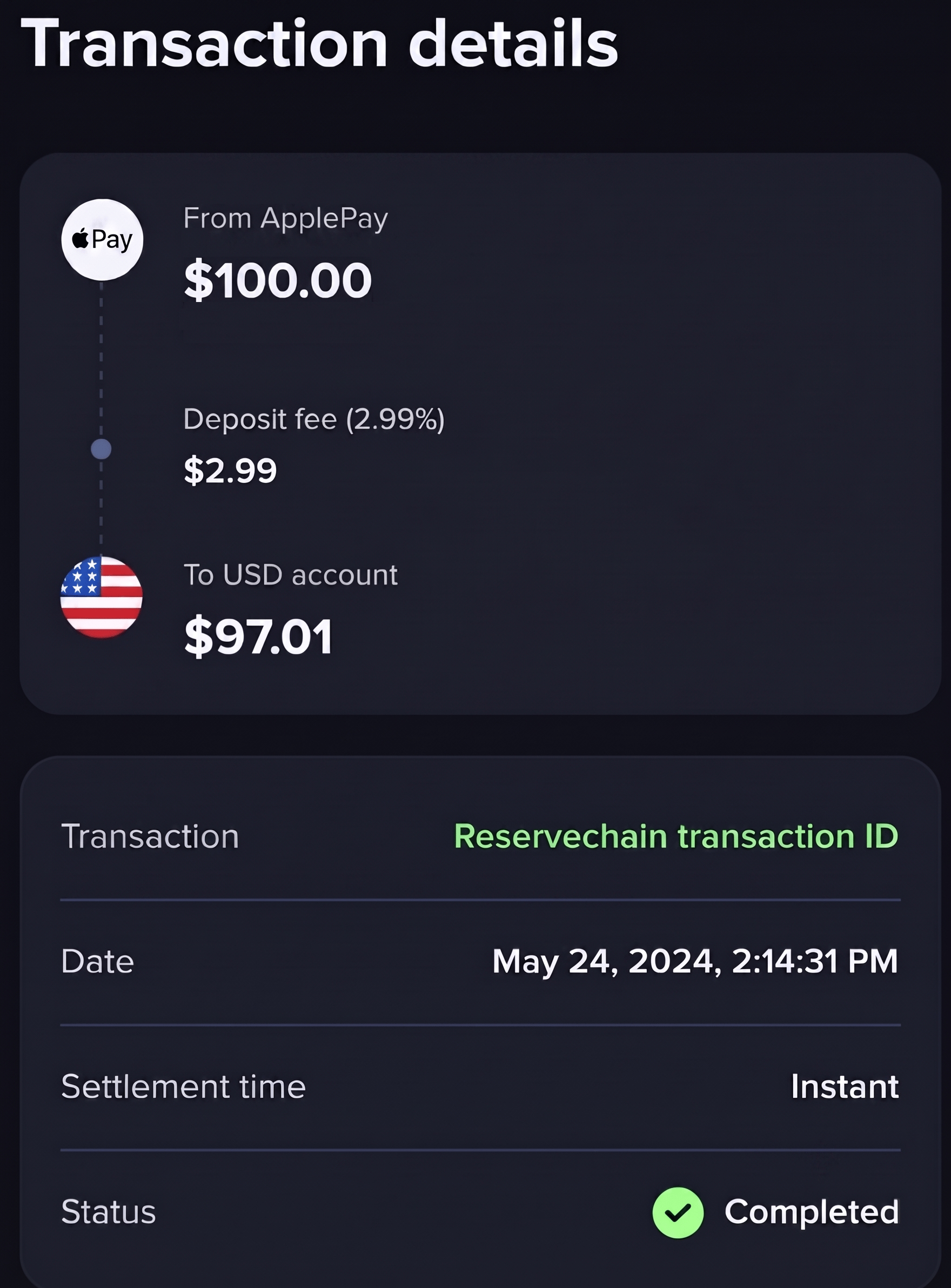
Troubleshooting
Having issues rendering Apple Pay? See Troubleshooting in the Payment Widget installation guide.You now support Apple Pay deposits via the REST API together with the Payment Widget.